
Auto Clicker for Games 24/7 – Automate Repetitive Game Tasks with Macros
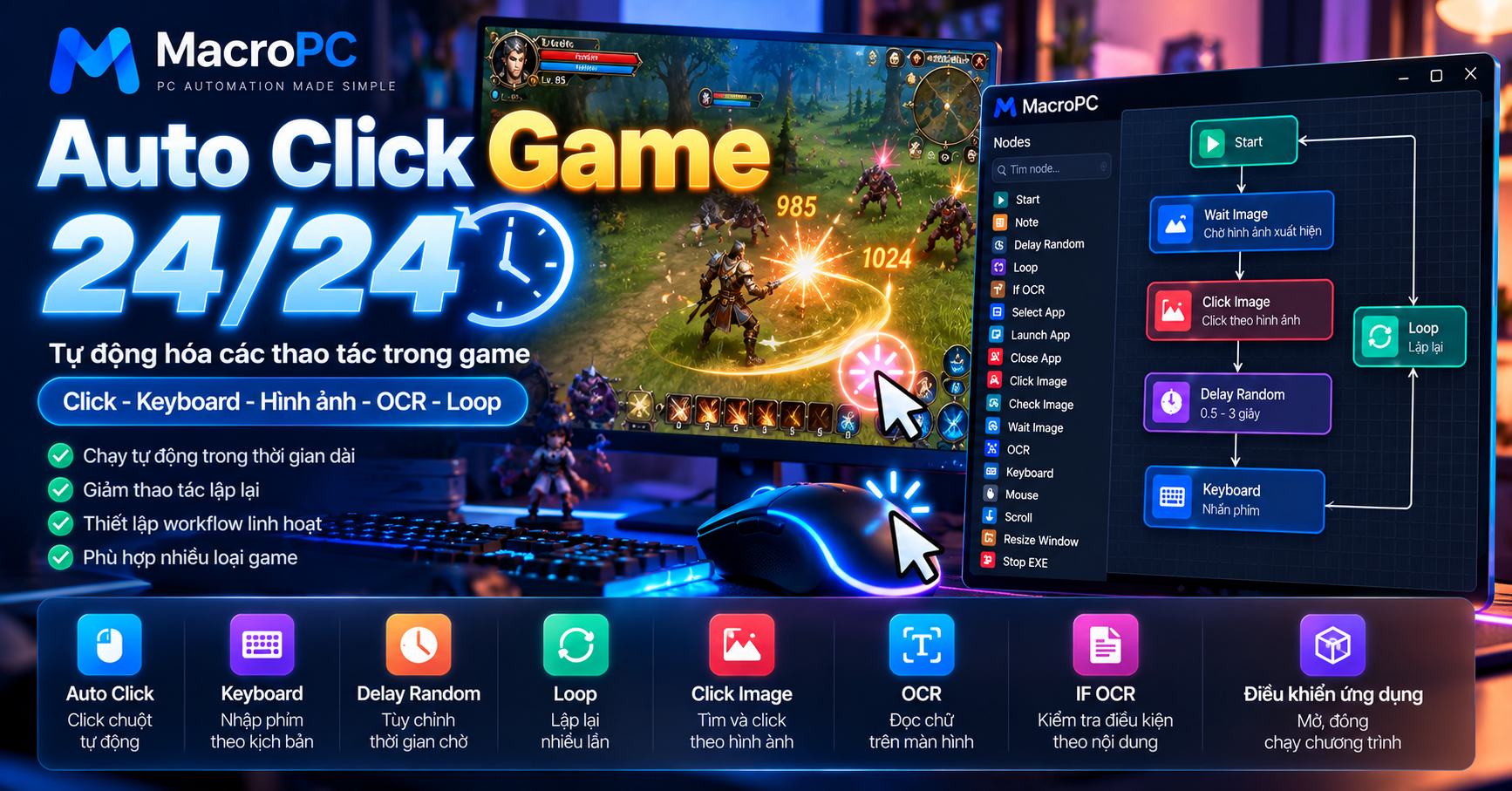
If you play a game that requires the same mouse clicks, keyboard actions, or repetitive tasks over and over again, doing everything manually can quickly become tiring.
This is where an auto clicker or macro can help. Instead of repeatedly clicking the same location yourself, you can create an automated workflow that performs the actions for you.
For simple tasks, an auto clicker may be enough. But when a game requires multiple actions, conditions, image detection, or keyboard input, a macro-based automation tool gives you much more flexibility.
What Is an Auto Clicker for Games?
An auto clicker is software that automatically performs mouse clicks based on settings you define.
A basic workflow might look like this:
Select Click Position
↓
Set Click Interval
↓
Set Number of Clicks
↓
Start
↓
Automatically Click
For a simple repetitive action, this can save a lot of manual effort.
However, not every automation task can be solved with repeated mouse clicks alone.
Auto Clicker vs Game Macro
An auto clicker is mainly designed to automate mouse clicks.
A macro can automate a complete sequence of actions.
For example:
Start
↓
Click
↓
Delay
↓
Keyboard
↓
Click
↓
Delay
↓
Loop
This means a macro can reproduce an entire workflow instead of simply clicking the same location repeatedly.
How to Use an Auto Clicker for Repetitive Game Tasks
For a simple task, the process is straightforward.
You choose the position that should be clicked, set the interval between clicks, choose how many times the action should repeat, and then start the workflow.
For example:
START
↓
Delay
↓
Click
↓
Delay
↓
Click
↓
Loop
The workflow can continue repeating the same sequence according to the settings you configure.
Can a Macro Run Game Tasks for Long Periods?
One common reason people look for game macros is to automate repetitive tasks for extended periods.
Instead of manually repeating the same sequence hundreds or thousands of times, you can create a workflow that uses a Loop to repeat the actions.
A more advanced workflow could look like this:
START
↓
Click
↓
Random Delay
↓
Keyboard
↓
Wait for Image
↓
Click Image
↓
Loop
This approach is more flexible than a simple auto clicker because the workflow can contain different types of actions.
Auto Clicker 24/7: Is Clicking Continuously Enough?
Not always.
If the task only requires clicking the same location repeatedly, a basic auto clicker may be sufficient.
But if the application changes state or requires several different actions, continuously clicking one coordinate may not work reliably.
For example:
Click
↓
Wait for Screen
↓
Find Image
↓
Click Image
↓
Press Keyboard Key
↓
Read Text
↓
Check Condition
↓
Continue or Take Another Action
↓
Loop
This type of workflow is closer to full desktop automation than a traditional auto clicker.
Using Image Recognition for Game Automation
Coordinate-based clicking can become unreliable when the application window moves, changes size, or the interface changes.
With image recognition, an automation workflow can look for a specific visual element before performing the next action.
For example:
Wait Image
↓
Find Image on Screen
↓
Click Image
↓
Delay
↓
Continue Workflow
This allows the automation to react to what is actually displayed on the screen rather than relying only on a fixed coordinate.
Using OCR to Read Text on the Screen
Sometimes an image is not enough to determine what is happening on the screen.
OCR can be used to recognize text displayed inside an application and use that result as part of an automation workflow.
For example:
OCR
↓
Read Text
↓
IF OCR
↓
If Text Is Found
    ↓
    Perform Action A

If Text Is Not Found
    ↓
    Perform Action B
This allows the workflow to make decisions based on the current screen state.
Example of a Game Automation Macro
A more advanced workflow could combine several automation nodes:
START
↓
Select App
↓
Launch App
↓
Random Delay
↓
Wait Image
↓
Click Image
↓
Keyboard
↓
Random Delay
↓
OCR
↓
IF OCR
↓
Loop
Each step has a specific purpose:
- Select App: Choose the application to automate.
- Launch App: Open the application when needed.
- Wait Image: Wait for a specific visual element.
- Click Image: Click based on an image found on the screen.
- Keyboard: Send keyboard input.
- OCR: Read text from the screen.
- IF OCR: Check the OCR result and choose what happens next.
- Loop: Repeat the workflow.
Using MacroPC for Auto Click and Game Macros
If you only need to click a single location repeatedly, a simple auto clicker may be enough.
When the workflow becomes more complicated, a visual automation tool can make it easier to combine different actions.
With MacroPC, a workflow can combine actions such as:
START
↓
Click
↓
Random Delay
↓
Keyboard
↓
Wait Image
↓
Click Image
↓
OCR
↓
IF OCR
↓
Loop
Instead of creating a script from scratch, you can build the workflow by connecting automation nodes together.
Things to Check Before Running a Macro for a Long Time
1. Test the Loop
Make sure the loop behaves as expected and has an appropriate stopping condition.
2. Use Appropriate Delays
Applications may need time to process an action before the next action is performed. Adding suitable delays can make a workflow more reliable.
3. Check Window Position and Size
Coordinate-based clicks can become inaccurate if the application window moves or changes size.
4. Use Image Detection When Appropriate
Instead of assuming that something will appear after exactly a certain amount of time, a workflow can wait for a specific image before continuing.
5. Test Before Long Runs
Always test the workflow for a short period before allowing it to run for a much longer session.
What Can a Game Auto Clicker Be Used For?
Auto clickers and macros are most useful for repetitive tasks where the sequence of actions is predictable.
- Repeating mouse clicks.
- Sending keyboard input.
- Repeating a sequence of actions.
- Waiting for visual elements.
- Clicking detected images.
- Reading text with OCR.
- Running loops.
- Opening and controlling applications.
For online games, keep in mind that some games prohibit bots, macros, or third-party automation software. Always check the rules or terms of service of the specific game before using automation.
Auto Clicker or Macro: Which One Do You Need?
If your task is simply clicking the same location repeatedly, an auto clicker is usually all you need.
If you need to combine mouse clicks, keyboard input, image recognition, OCR, conditions, and loops, a macro-based automation workflow provides more flexibility.
| Task | Auto Clicker | Macro |
|---|---|---|
| Repeated mouse clicks | Yes | Yes |
| Keyboard actions | Limited | Yes |
| Multiple actions | Limited | Yes |
| Loops | Sometimes | Yes |
| Image recognition | Depends on the software | Can support it |
| OCR | Usually not | Can support it |
| Conditions / IF logic | Limited | Yes |
From Auto Clicking to Full PC Automation
For many users, auto clicking is simply the starting point.
As the automation becomes more advanced, a simple click can evolve into a complete workflow:
Auto Click
↓
Macro
↓
Image Recognition
↓
OCR
↓
IF / Conditions
↓
Loop
↓
PC Automation
This is where a visual automation platform becomes useful. Instead of automating only one action, you can build a complete sequence that reacts to what is happening on the screen.
Conclusion
An auto clicker can be useful when you need to repeat mouse clicks without performing them manually.
When the workflow involves multiple actions, keyboard input, image recognition, OCR, conditions, and loops, a macro provides a much more flexible approach.
MacroPC is designed around this broader idea of PC automation, allowing users to build workflows by connecting different automation actions together.
Instead of limiting automation to a single click, you can combine Click, Keyboard, Delay, Loop, Click Image, OCR, and IF into a complete workflow.