
What Is PC Automation? A Complete Guide to Automating Your Computer
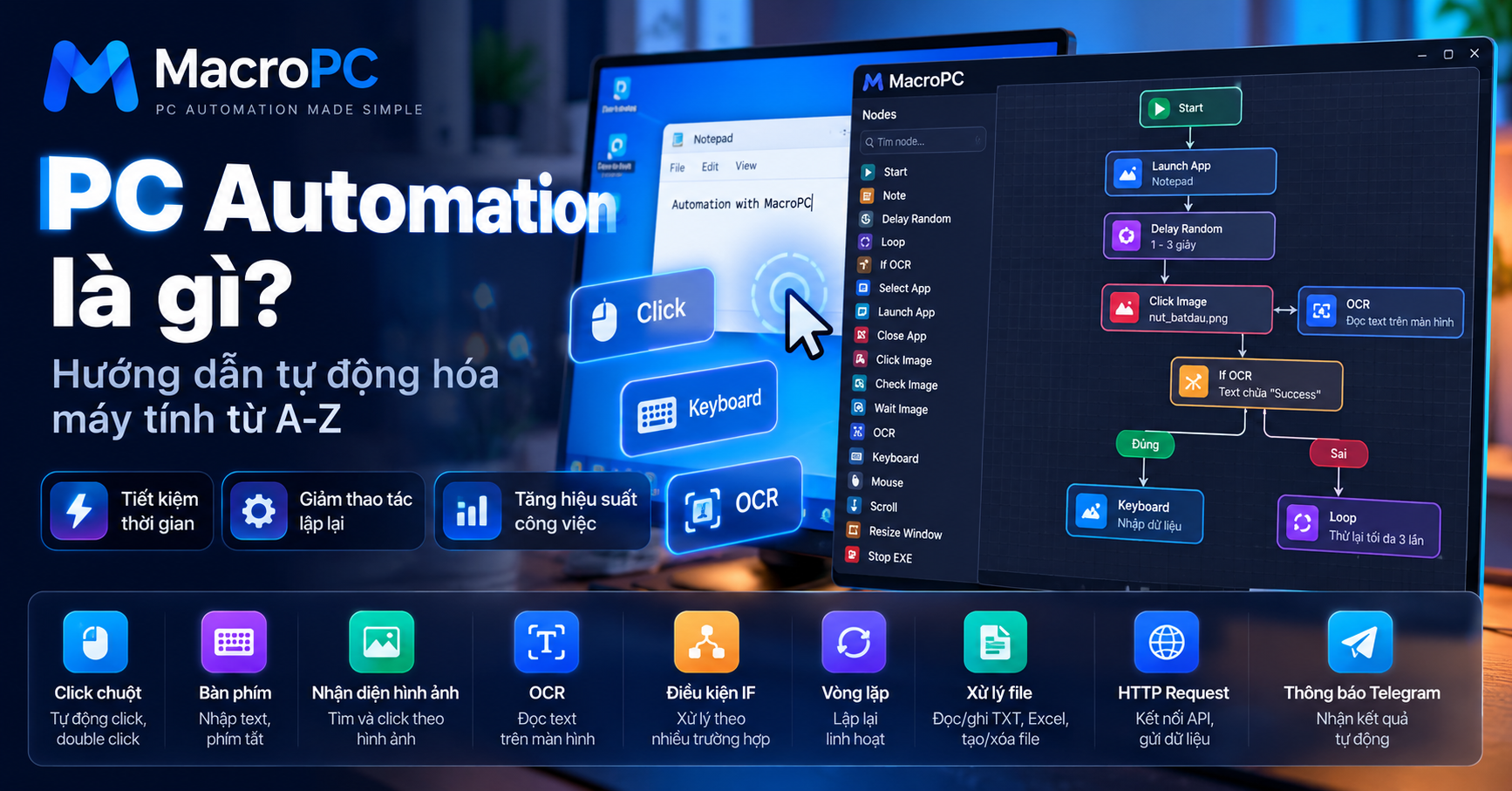
If you spend part of your day clicking buttons, entering the same information, opening applications, waiting for a screen to load, and repeating the same steps over and over, you may be able to automate part of that work.
This is where PC automation comes in. Instead of manually performing every step, you can create a workflow that tells your computer what to do, when to do it, and what should happen when a certain condition is met.
What Is PC Automation?
PC automation, also known as desktop automation, is the use of software to automatically perform tasks that would normally require manual interaction with a computer.
These tasks can be very simple, such as clicking a button, typing text, pressing a keyboard shortcut, or scrolling a window. When multiple actions are connected together, they can become a complete automation workflow.
A simple PC automation workflow might look like this:
- Open an application.
- Wait for the application to finish loading.
- Click a button.
- Enter some information.
- Check the result.
- Continue if the result is correct.
- Retry if something is missing or unexpected.
Instead of performing these steps manually every time, the workflow can handle the repetitive parts automatically.
PC Automation vs. Auto Clicker
PC automation and auto clickers are related, but they are not the same thing.
An auto clicker is usually designed for a specific task: automatically clicking the mouse at a particular position, interval, or sequence.
PC automation can go much further. A workflow can combine mouse actions, keyboard input, image recognition, OCR, conditions, loops, file operations, HTTP requests, and other actions.
For example:
Launch an application
↓
Wait for the application to load
↓
Find an image on the screen
↓
Click the image
↓
Enter data
↓
Read text using OCR
↓
Check a condition
↓
If successful → continue
If not → retry
This is closer to a complete desktop automation workflow than a simple auto clicker.
How Does PC Automation Work?
Most automation workflows are built from individual actions. Each action performs one specific task, and multiple actions are connected together to create a process.
A basic workflow can be represented like this:
Start
  ↓
Action
  ↓
Wait
  ↓
Check
  ↓
Condition
  ↓
Next Action
When the workflow runs, the automation system executes each step in order. If the workflow contains conditions, it can check the current state before deciding which action should happen next.
Common Components of PC Automation
1. Mouse Automation
Mouse automation is one of the simplest ways to automate a computer. It can be used to click buttons, double-click items, move the mouse, scroll through a page, or perform a sequence of mouse actions.
For example, instead of manually clicking through the same application every time, you can create a workflow that performs those actions automatically.
2. Keyboard Automation
Keyboard automation allows a workflow to enter text, press keys, use keyboard shortcuts, and perform repetitive keyboard operations.
This can be useful when the same information needs to be entered repeatedly or when an application relies heavily on keyboard shortcuts.
3. Delays and Wait Conditions
Timing is an important part of desktop automation. An application may need a few seconds to load after a button is clicked, and immediately performing the next action can cause the workflow to fail.
A simple workflow might look like:
Click Login
↓
Wait
↓
Wait for an image
↓
Click Continue
MacroPC provides nodes such as Delay Random and Wait Image that can be used to control the timing of a workflow.
4. Image Recognition
Not every desktop application provides an easy way to access its interface elements directly. In some situations, recognizing what is visible on the screen can be a practical approach.
For example:
Wait for a button to appear
↓
Check Image
↓
If the image is found
↓
Click Image
Instead of always clicking a fixed screen coordinate, the workflow can look for a specific visual element before continuing.
5. OCR Automation
OCR, or Optical Character Recognition, allows software to extract text from an image or screen.
In desktop automation, OCR can be useful when the workflow needs to read information displayed inside an application.
For example:
OCR
↓
Read text from the screen
↓
Check the text
↓
IF condition
↓
Perform the appropriate action
This allows an automation workflow to react to information on the screen instead of simply following a fixed sequence of clicks.
6. IF Conditions
Real-world automation rarely follows exactly the same path every time. Sometimes an operation succeeds, sometimes it fails, and sometimes an expected element has not appeared yet.
This is where IF conditions become useful.
OCR
↓
IF text contains "Success"
├── Yes → Save the result
└── No  → Retry
Instead of simply telling the computer to perform A, then B, then C, you can define what should happen under different conditions.
7. Loops
Some tasks need to be repeated multiple times. A loop allows you to repeat a group of actions without having to create the same steps again and again.
For example:
Loop
↓
Click
↓
Enter data
↓
Check result
↓
Repeat
Loops can also be combined with conditions so that an automation continues until a specific result is detected.
A Real-World PC Automation Workflow
Imagine that you need to open an application, wait until it is ready, find a button, enter information, and check the result.
A workflow could look like this:
START
  ↓
Launch App
  ↓
Delay Random
  ↓
Wait Image
  ↓
Click Image
  ↓
OCR
  ↓
IF OCR
  ├── Success → Keyboard → Save Result
  │
  └── Failed  → Loop → Retry
Looking at the workflow this way makes it easier to understand what the computer is expected to do at each stage.
How MacroPC Approaches PC Automation
MacroPC is designed around a visual automation approach. Instead of writing a separate program for every repetitive task, you can build a workflow by connecting different automation nodes.
A workflow can combine different types of actions, including:
- Mouse clicks
- Keyboard input
- Mouse movement and scrolling
- Random delays
- Image clicking
- Image checking
- Waiting for images
- OCR
- OCR conditions
- Loops
- Launching applications
- Closing applications
- Starting and stopping EXE files
- Reading and writing text files
- Reading and writing Excel files
- HTTP requests
- JavaScript
- Telegram notifications
Each node has a specific purpose. By combining them, you can create a workflow that matches the way your own process works.
What Can You Use PC Automation For?
There is no single list of tasks that PC automation can handle. A good starting point is to look for work that is repetitive, follows predictable steps, and does not require a human decision at every stage.
Desktop Tasks
- Automating mouse clicks and keyboard input.
- Opening and closing applications.
- Running repetitive desktop workflows.
- Checking application status.
- Repeating the same process multiple times.
File Automation
- Reading TXT files.
- Writing TXT files.
- Reading and writing Excel files.
- Creating files.
- Deleting files.
- Creating and deleting folders.
Advanced Automation
- OCR automation.
- Image recognition.
- IF conditions.
- Loops.
- HTTP requests.
- JavaScript automation.
- Telegram notifications.
PC Automation vs. Macros vs. RPA
These terms are sometimes used interchangeably, but they generally describe different levels or approaches to automation.
A macro usually refers to a recorded or predefined sequence of actions that can be played back.
PC or desktop automation covers a broader range of actions, including mouse and keyboard control, image recognition, OCR, file operations, conditions, loops, and application control.
RPA, or Robotic Process Automation, is generally associated with automating structured business processes that may involve multiple applications, systems, and data sources.
The boundaries between these categories are not always strict. A simple macro can become a much more advanced automation workflow as you add conditions, data processing, OCR, image recognition, and application control.
When Should You Use PC Automation?
Not every task needs automation. If you only perform a task once, building a workflow may take more time than simply doing it manually.
The situation is different when the same process happens every day or every week.
Look for tasks that are:
- Repeated frequently.
- Based on predictable steps.
- Time-consuming when performed manually.
- Not dependent on a human decision at every step.
These are often good candidates for PC automation.
Things to Consider When Building PC Automation
Automation does not mean that a workflow will automatically work in every possible situation. Applications can load at different speeds, interfaces can change, buttons can move, and expected content may not appear.
Because of this, a reliable workflow should not always depend on fixed coordinates and fixed delays alone.
When appropriate, combining Wait Image, Check Image, OCR, IF conditions, and Loops can help the workflow react to what is actually happening on the screen.
It also makes troubleshooting easier because you can identify which part of the workflow failed instead of treating the entire process as one large automation.
How to Get Started With PC Automation
If you are new to automation, start with a small workflow instead of trying to automate an entire process at once.
For example:
Open an application
↓
Click a button
↓
Enter text
↓
Save
Once the basic workflow works, you can gradually add more advanced steps such as image recognition, OCR, conditions, and loops.
This approach makes it easier to understand how each part of the automation works before combining everything into a larger workflow.
Who Is MacroPC For?
MacroPC is designed for people who want to automate repetitive tasks on their PC using a visual workflow instead of building a separate program for every task.
It can be useful for workflows that involve mouse clicks, keyboard input, waiting, image recognition, OCR, conditions, loops, file operations, HTTP requests, and application control.
The idea is simple: start with the actions you need, connect them into a workflow, and adjust the workflow as your process changes.
Conclusion
PC automation is essentially about turning repetitive computer tasks into workflows that software can perform for you.
A workflow can start with something as simple as Click → Keyboard → Delay and grow into a more advanced process using Image Recognition → OCR → IF → Loop → File Operations → HTTP Request.
MacroPC takes a visual approach to this process by letting you build workflows from connected automation nodes, making it easier to see what each step is doing and modify the workflow when your process changes.
If you have a task that you perform repeatedly on your computer, try asking yourself:
“Which part of this process could my computer do for me?”
That question is often the starting point for a useful PC automation workflow.