
Auto Clicker for Windows – Automate Repetitive Mouse Clicks
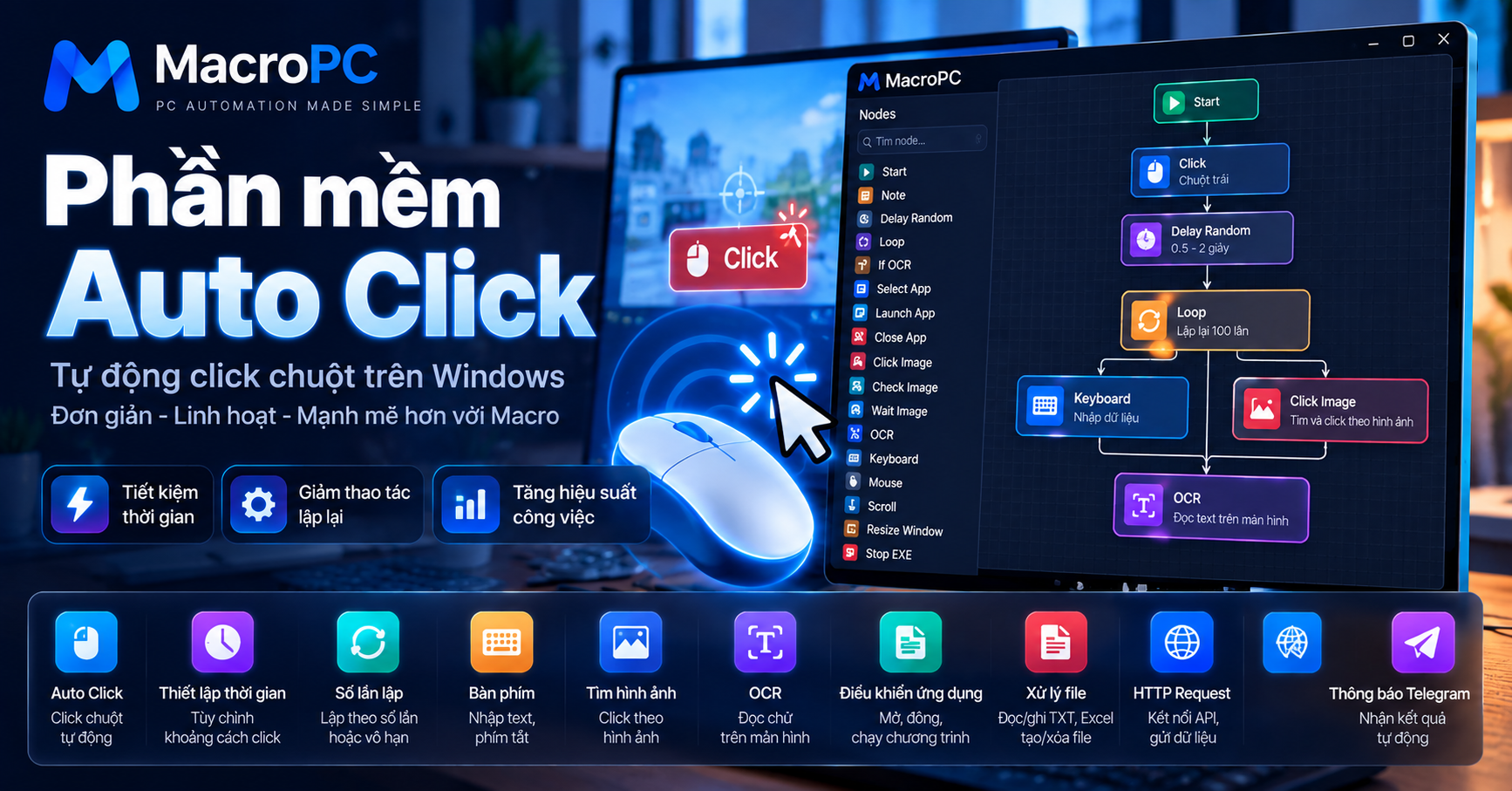
If you find yourself clicking the same button dozens, hundreds, or even thousands of times, an auto clicker for Windows can take care of the repetitive part for you.
Instead of manually moving your mouse and clicking over and over again, you can configure an auto clicker to click at a specific location, wait for a certain interval, repeat a specific number of times, or continue until you stop it.
What Is an Auto Clicker?
An auto clicker is software that automatically performs mouse clicks based on settings defined by the user.
Instead of manually clicking the mouse repeatedly, you configure the clicking behavior and let the software perform the repetitive action.
Typical auto clicker settings include:
- Click location.
- Mouse button.
- Click interval.
- Number of clicks.
- Start and stop hotkeys.
Some tools focus almost entirely on mouse clicking, while macro and desktop automation tools can combine mouse clicks with keyboard input, image recognition, OCR, recording, loops, and other actions. :contentReference[oaicite:7]{index=7}
How Does an Auto Clicker Work?
At a basic level, an auto clicker sends mouse events according to the configuration you provide.
A simple workflow looks like this:
Select a location
↓
Set the click interval
↓
Set the number of clicks
↓
Press Start
↓
The auto clicker performs the clicks
Depending on the application, an auto clicker may support the current cursor position, a fixed screen coordinate, or multiple click locations. Common options include left click, right click, double click, click intervals, and repeat counts. :contentReference[oaicite:8]{index=8}
When Should You Use an Auto Clicker?
Auto clickers are useful when the task mainly consists of repeating mouse clicks according to a predictable pattern.
Examples include:
- Repeatedly clicking the same location.
- Clicking at regular intervals.
- Repeating a simple mouse operation.
- Reducing repetitive manual clicking.
- Automating a small part of a larger desktop process.
However, once a workflow needs to read information from the screen, enter data, detect an image, or make a decision based on what is happening, a basic auto clicker may no longer be enough.
What Is Coordinate-Based Auto Clicking?
One common way to automate mouse clicks is by using fixed screen coordinates.
Click X: 500
Click Y: 300

↓
Wait 1 second

↓
Click X: 700
Click Y: 400
This approach is simple and can work well when the application stays in the same position and the interface does not change.
The limitation is that moving the application window, changing the screen layout, or resizing the interface can make fixed coordinates point to the wrong location.
Desktop automation tools therefore also provide other ways to locate targets, including image-based actions and OCR-based text detection. :contentReference[oaicite:9]{index=9}
Image-Based Auto Clicking
Instead of clicking a fixed coordinate, an automation workflow can look for a specific image on the screen and click where that image is found.
Wait for image
↓
Check Image
↓
Image found?
├── Yes → Click Image
└── No  → Keep waiting
This can be useful when the location of a button changes but its visual appearance remains relatively consistent.
Image-based automation is also used by desktop automation platforms when direct UI element access is not suitable or available. :contentReference[oaicite:10]{index=10}
Auto Clicker vs. Macro Software
Auto clickers and macro tools overlap, but they are designed for different levels of automation.
An auto clicker is primarily focused on repeating mouse clicks.
A macro tool can combine several actions, such as mouse movement, clicking, scrolling, keyboard input, and delays.
For example:
Auto Clicker:

Click
↓
Click
↓
Click
↓
Click


Macro:

Click
↓
Keyboard
↓
Scroll
↓
Click
↓
Delay
↓
Keyboard
Modern macro tools can record mouse movements, clicks, scrolling, and keyboard input, then replay those actions according to configured playback settings. :contentReference[oaicite:11]{index=11}
If you only need repetitive clicking, a dedicated auto clicker may be sufficient. If your process contains several different actions, a macro or desktop automation tool may make more sense.
When Is an Auto Clicker Not Enough?
Consider a workflow like this:
Launch an application
↓
Wait for it to load
↓
Find a button on the screen
↓
Click it
↓
Enter information
↓
Read text
↓
Check the result
↓
If successful → continue
If failed → retry
This is no longer just a mouse-clicking problem.
The workflow needs Wait, Image Recognition, Keyboard, OCR, IF conditions, and Loops.
Desktop automation platforms commonly extend mouse and keyboard automation with image recognition and OCR for workflows that need to react to the current screen state. Microsoft Power Automate for desktop, for example, provides mouse, keyboard, image, and OCR actions. :contentReference[oaicite:12]{index=12}
Using MacroPC for More Than Auto Clicking
MacroPC takes a visual workflow approach instead of treating clicking as the entire automation.
A workflow can look like:
START
↓
Launch App
↓
Delay Random
↓
Wait Image
↓
Click Image
↓
Keyboard
↓
OCR
↓
IF OCR
↓
Loop
↓
Write File
In this workflow, clicking is only one part of the process.
You can start with a simple click action and add other nodes as the automation becomes more complex.
What Should You Look for in an Auto Clicker?
Auto clickers are not all designed the same way. The right feature set depends on what you actually need to automate.
1. Click Interval
The software should allow you to control the amount of time between clicks when timing matters to your workflow.
2. Repeat Count
You may want the clicker to stop after a specific number of clicks or continue until you manually stop it.
3. Hotkeys
Start and stop hotkeys make it easier to control an automation without constantly opening the application window.
4. Mouse Button Options
Depending on the task, you may need left click, right click, double click, or other mouse actions.
5. Macro and Keyboard Support
If your workflow requires typing, keyboard shortcuts, scrolling, or mouse movement, look beyond basic auto click functionality and consider macro capabilities.
6. Image Recognition
Image recognition can help when you need to locate a visual element instead of relying entirely on a fixed screen coordinate.
7. OCR
OCR becomes useful when the automation needs to read text displayed on the screen. Desktop automation platforms commonly use OCR to find or extract text from the screen. :contentReference[oaicite:13]{index=13}
What Can You Use an Auto Clicker For?
Auto clickers can be useful for many repetitive mouse tasks, depending on the application and its rules regarding automation.
- Repeating mouse clicks.
- Automating simple desktop interactions.
- Testing repetitive UI interactions.
- Combining clicks with keyboard actions.
- Reducing repetitive manual operations.
- Building simple macro workflows.
For software, games, or online services that restrict automation, always check the applicable terms of service before using an auto clicker or macro.
Auto Clickers and PC Automation
An auto clicker can be thought of as one small part of a larger PC automation system.
PC Automation
│
├── Mouse
│   ├── Click
│   ├── Double Click
│   └── Scroll
│
├── Keyboard
│
├── Image Recognition
│
├── OCR
│
├── IF
│
├── Loop
│
└── File / HTTP / Script
If all you need is repeated clicking, a simple auto clicker may be enough. When your workflow starts involving multiple actions and decisions, a visual automation tool can give you more room to build and maintain the process.
Why MacroPC Is More Than an Auto Clicker
MacroPC is designed as a visual PC automation tool.
Instead of configuring only the number of clicks, you can build a workflow by connecting different automation nodes.
- Mouse clicks.
- Keyboard input.
- Scrolling.
- Random delays.
- Image clicking.
- Image checking.
- Waiting for images.
- OCR.
- OCR conditions.
- Loops.
- Launching applications.
- Closing applications.
- Reading and writing files.
- Excel automation.
- HTTP requests.
- JavaScript.
- Telegram notifications.
This means you can start with a simple auto-click workflow and gradually expand it into a larger desktop automation process when your requirements grow.
Conclusion
An auto clicker for Windows is a simple way to automate repetitive mouse clicks. For basic tasks, you may only need to configure the click location, interval, and repeat count.
Once your task requires keyboard input, image detection, OCR, conditions, or loops, you may need something beyond a dedicated auto clicker.
MacroPC takes that next step by combining mouse clicks and keyboard input with Image Recognition, OCR, IF conditions, Loops, File Operations, and HTTP Requests inside a visual workflow.
If you have a task that requires you to click the same thing repeatedly every day, that repetitive action may be the first part of your workflow that is worth automating.